The Settings window lets you configure global preferences for the Formula Manager add-in. It contains three tabs.
Backup Files Tab
Formula Manager can automatically back up the active workbook before applying any changes. This tab controls where backups are stored and how long they are kept.
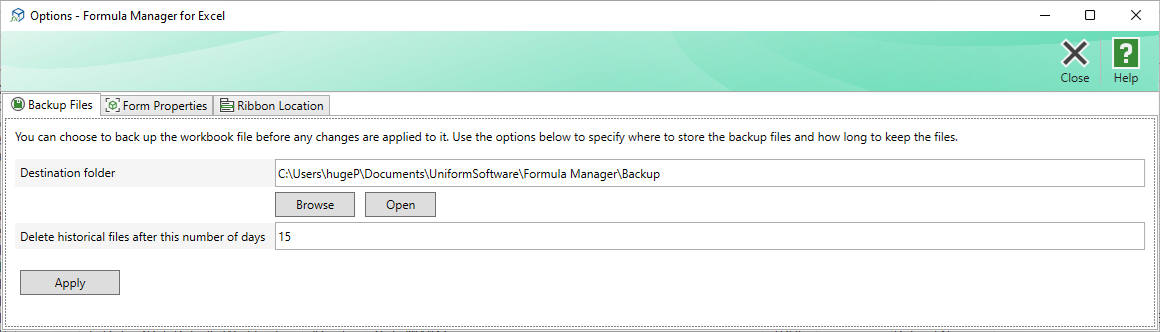
| Destination folder | The folder where backup files are saved. Click Browse to pick a folder using the system folder browser, or type a path directly. Click Open to open the current backup folder in Windows Explorer. |
|---|---|
| Delete backup files older than this number of days | Backup files older than the specified number of days are automatically deleted when the add-in loads. Set to 0 to keep backups indefinitely, or set a positive integer to limit retention. |
| Apply | Saves the backup settings. |
Note: The backup feature must also be enabled at the time of each operation using the Back up the file before update checkbox that appears in the Delete, Export, Localize, Globalize, and Import windows.
Form Properties Tab
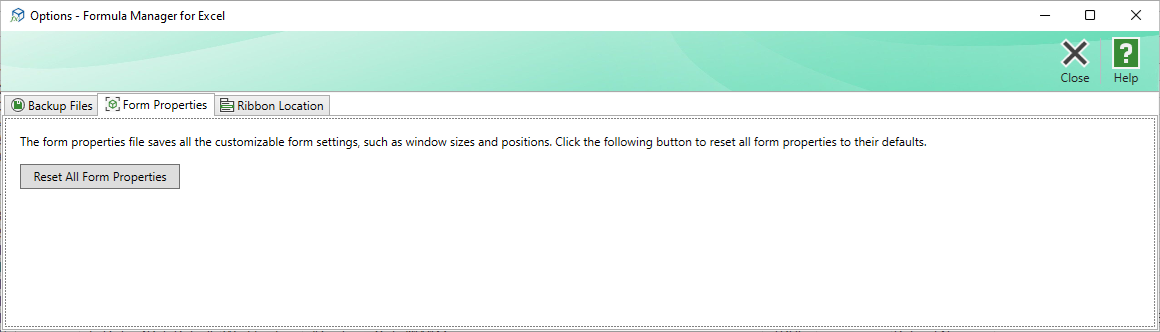
The add-in saves window sizes, positions, column widths, and other UI customisations to a settings file. If the windows appear in unexpected positions or have garbled layouts (for example after changing screen resolution), click Reset All Form Properties to return every window to its default size and position.
Note: The reset takes effect the next time each window is opened.
Ribbon Location Tab
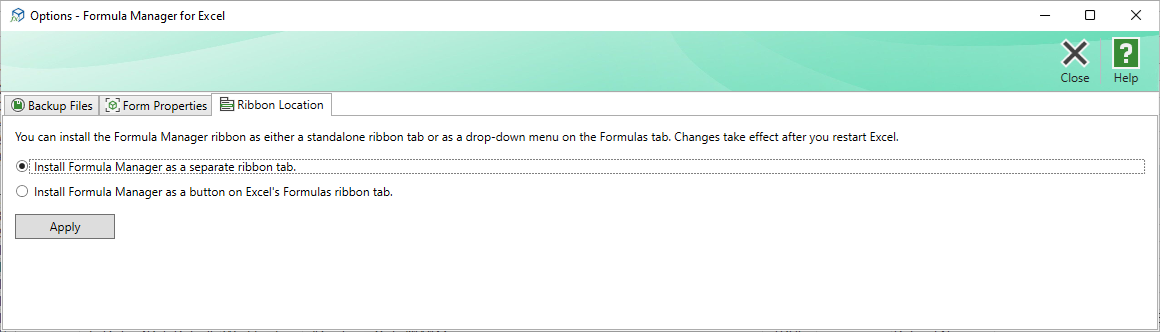
Formula Manager can appear in two locations on the Excel ribbon:
- Install as a separate ribbon tab – adds a dedicated Formula Manager tab to the Excel ribbon (the default).
- Install as a button on Excel's Formulas tab – adds a Formula Manager drop-down button to Excel's built-in Formulas tab, which keeps the ribbon less cluttered.
Click Apply to save the choice. The change takes effect after restarting Excel.