The Explorer window is the most comprehensive tool in the add-in. It displays every defined name, range formula, and table name in the active workbook in a searchable, sortable list, and shows the dependency relationships between names — which names refer to which, and which names are referenced by which formulas or objects.
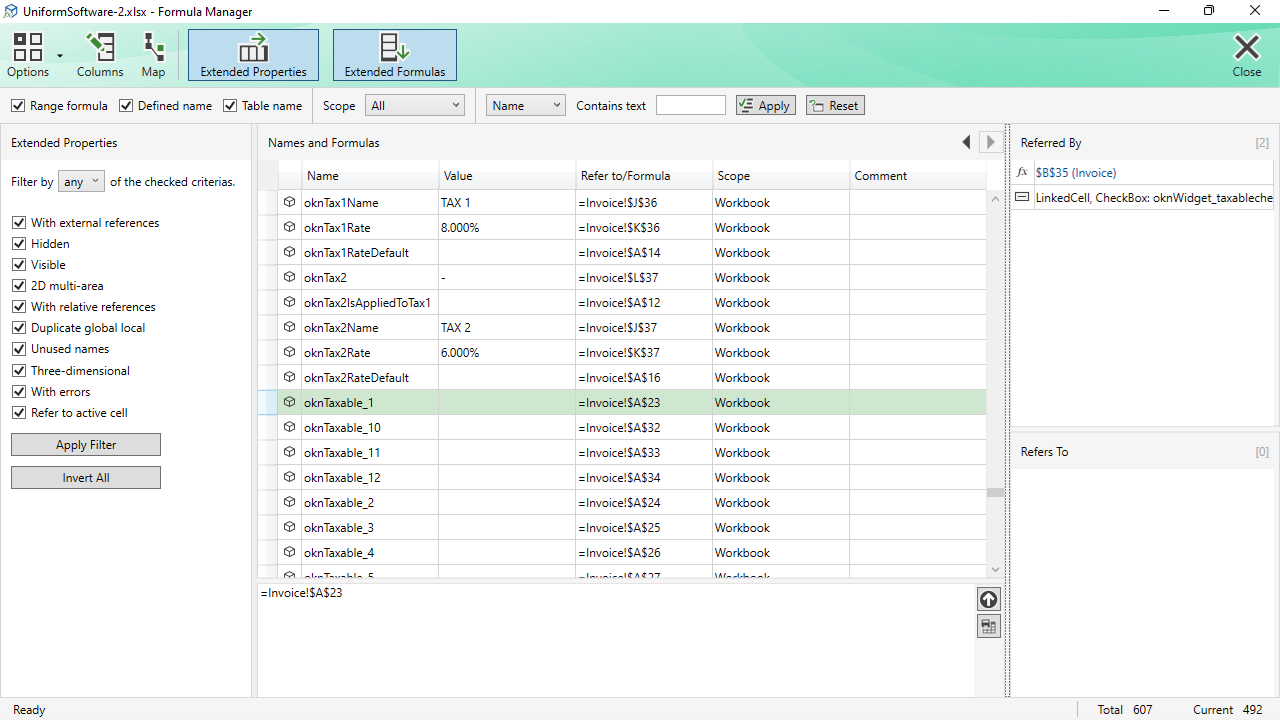
Window Layout Overview
The window has three main columns arranged side by side, a toolbar across the top, and a status bar at the bottom. All dividers between areas can be dragged to resize them, and the layout is remembered between sessions.
| Left column | Extended Properties panel. Shows an advanced filter based on structural characteristics of each name. Hidden by default; enable via Options menu. |
|---|---|
| Centre column | Names and Formulas grid (main list) plus, optionally, a Refers To edit box below it. |
| Right column | Referred By and Refers To panels. Show the dependency relationships for the selected name. Hidden by default; enable via Options menu. |
Filter Toolbar
A second toolbar directly below the menu bar provides instant filtering of the Names and Formulas grid.
Type filter
Three checkboxes control which categories of name appear in the list:
- Range formula – names whose Refers To is a cell formula (begins with =).
- Defined name – standard named ranges and constants.
- Table name – names corresponding to an Excel Table (ListObject).
Scope filter
| All | Show all names regardless of scope. |
|---|---|
| Workbook | Show only workbook-level names. |
| All worksheets | Show only worksheet-level names (any sheet). |
| Active worksheet | Show only names scoped to the currently active sheet. |
Text search
Choose a field (Name, Refers to, Value, or Comment) from the drop-down, type a search term in the Contains text box, then press Enter or click Apply. Click Reset to clear all filters.
Names and Formulas Grid (Centre)
The central panel lists every name or formula that passes the current filters. Click any column header to sort. Use the Columns command to choose which columns are shown.
Common columns include: Name, Scope, Refers To (the formula or address), Value (the current computed value), Comment, and Type (the category icon).
Navigation History
The header of the Names and Formulas grid contains back (←) and forward (→) arrow buttons. Each time you select a different row the selection is recorded in a history list. Use these buttons to move backwards and forwards through that history, similar to browser navigation.
Double-clicking a Row
Double-clicking a row selects the corresponding range or cell on the Excel worksheet, so you can see exactly where the name points.
Refers To Edit Box
When enabled (Options → Show “Refers To” Edit Box), a text field appears below the main grid showing the formula of the selected name. You can edit the formula and click Save to write the change back to the workbook. This control is disabled for table names.
Extended Properties Panel (Left)
Enable via Options → Show “Extended Properties” Panel. Before using the filter in this panel, click Extended Properties in the menu bar to calculate the properties — this is only needed once per session.
At the top, choose whether to match any (at least one) or all of the checked criteria. The available criteria are:
| With external references | The name's formula references a cell in a different workbook. |
|---|---|
| Hidden | The name is marked as hidden and does not appear in Excel's Name Manager. |
| Visible | The name is not hidden. |
| 2D multi-area | The name refers to two or more non-contiguous ranges on a single sheet. |
| With relative references | The formula contains at least one relative cell reference (no $ prefix), so it resolves differently depending on which cell is active. |
| Duplicate global local | A worksheet-level name exists with the same base name as a workbook-level name. |
| Unused names | The name is not referenced by any other name or formula in the workbook. |
| Three-dimensional | The formula spans multiple worksheets (e.g. Sheet1:Sheet3!A1). |
| With errors | The name currently evaluates to an error value such as #REF! or #NAME?. |
| Refer to active cell | The formula contains a relative reference that changes depending on which cell is currently active. |
After configuring the criteria, click Apply Filter. Click Invert All to reverse every checkbox simultaneously — a quick way to switch the filter polarity.
Referred By Panel (Right, Upper)
Lists every name or formula in the workbook that references the currently selected name. It answers: “What depends on this name?” The count in the panel header shows the total number of referencing items. After running Extended Formulas, the panel also includes non-cell references such as hyperlinks and data-validation rules.
Clicking an entry in this panel selects the corresponding row in the main grid and updates both relationship panels.
Refers To Panel (Right, Lower)
Lists every name that the selected name's own formula references. It answers: “What does this name depend on?” Clicking an entry navigates to that name in the main grid.
Name Map Export
The Map command generates a NameMap worksheet with the following columns:
| Name | The defined name. |
|---|---|
| Referred by Sheet | The worksheet containing the referencing formula or object. |
| Referred by Object | The cell address, name, or object identifier of the referencing item. |
| Referred by Property | Which property holds the reference (e.g. Formula, Hyperlink address). |
| Referred by Formula | The actual formula or expression that contains the reference. |
Names that are not referenced by anything appear with blank Referred by columns, making it easy to spot unused names at a glance.
Status Bar
The status bar at the bottom of the window shows a message area (left), the total number of visible rows after filtering (Total), and the position of the selected row within the filtered list (Current).
