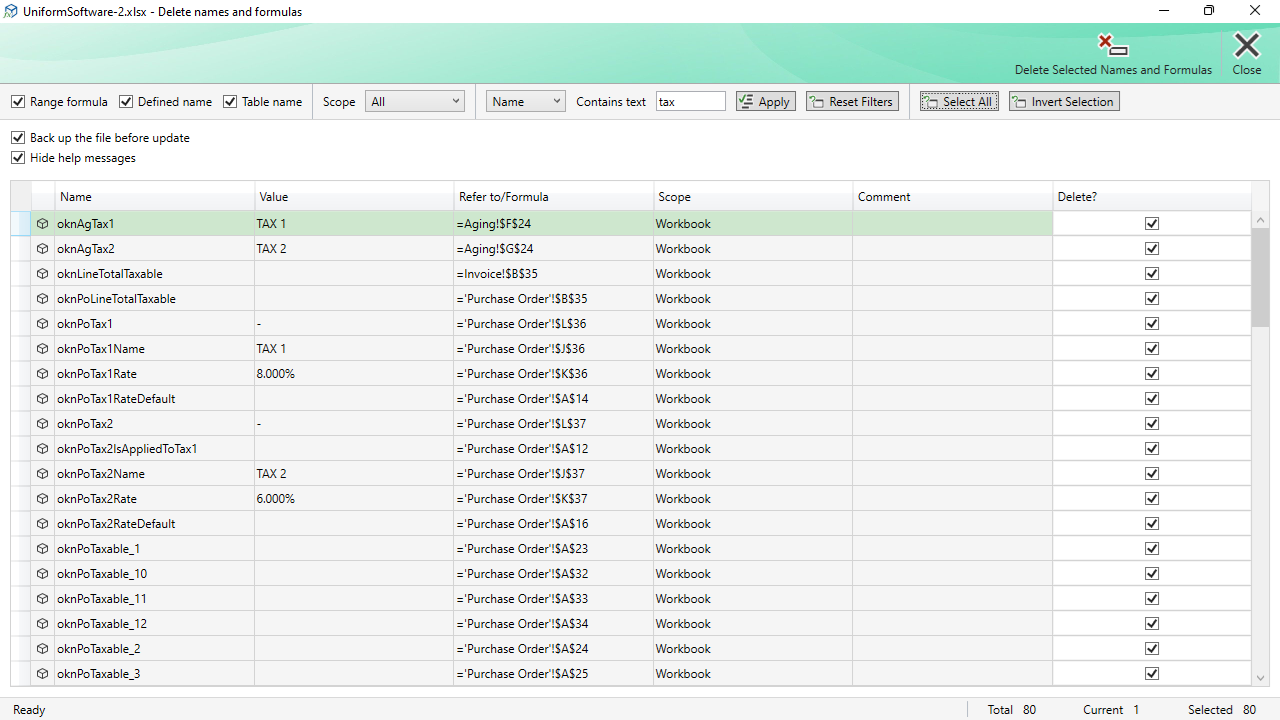
The Delete Names window lists all names and formulas in the active workbook and lets you select any combination of them to delete in a single operation. It is the most efficient way to clean up large numbers of unwanted names.
What Happens When a Name Is Deleted
| Defined name | The name is permanently removed from the workbook. Any formula that referenced it will show a #NAME? error. |
|---|---|
| Range formula | The formula is removed from the cell and the cell is left with the last calculated value (the result of the calculation at the time of deletion) as a plain constant. |
| Table name | The Excel Table (ListObject) is converted to an ordinary range. The table formatting and data remain, but structured references using the table name will break. |
These consequences are described in help messages at the bottom of the window. Check Hide help messages to collapse those messages if you are already familiar with them (the preference is saved for future sessions).
Filter Toolbar
The toolbar at the top of the window lets you narrow the list before selecting items to delete. The filters work identically to those in the Export window.
| Range formula / Defined name / Table name | Three checkboxes to show or hide each category of name. All three are checked by default. |
|---|---|
| Scope | Filters by scope: All, Workbook, All worksheets, or Active worksheet. |
| Field selector + Contains text | Searches within a specific column (Name, Refers to, Value, or Comment). Type text and click Apply or press Enter. |
| Reset Filters | Clears all filter fields and restores the full list. |
| Select All | Ticks the Delete? checkbox for every row currently visible (after filtering). |
| Invert Selection | Toggles the Delete? checkbox for every visible row: ticked rows become unticked and vice versa. |
The Name List
Each row in the list represents one name or formula. A Delete? checkbox column on the right lets you mark individual rows for deletion. You can also double-click a row to select the corresponding range on the Excel worksheet.
The status bar at the bottom shows the total number of visible rows, the position of the currently highlighted row, and the count of rows currently ticked for deletion.
Commands
| Delete Selected Names and Formulas | Deletes all rows whose Delete? checkbox is ticked, in a single pass. If a backup is requested, the workbook file is backed up first. Rows that are successfully deleted are removed from the list. If all rows are deleted the window closes automatically; if errors occur on some rows they are shown as row-level error indicators. The window remains open so you can inspect the errors. |
|---|---|
| Export Selected Names and Formulas | This command is hidden when the window is opened in Delete mode. It appears only when opened via the Export button. See the Export chapter for details. |
| Close | Closes the window. Pressing Escape has the same effect. |
| Back up the file before update | When checked, a backup copy of the workbook file is saved to the configured backup folder before any deletions are made. The backup destination is set in the Settings window. |
|---|---|
| Hide help messages | Hides the three explanatory labels at the bottom of the window that describe what happens when each type of name is deleted. This preference is saved between sessions. |
