The Import window reads name and formula definitions from the Formulas and Names worksheet and applies them to the active workbook. It is used in conjunction with the Export window to perform bulk updates to name definitions.
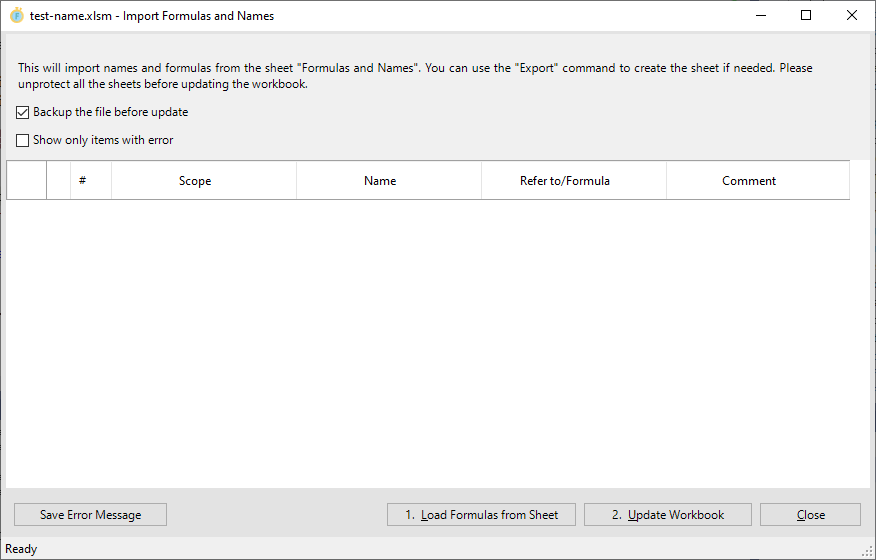
Typical Workflow
- Export names to the Formulas and Names sheet using the Export window.
- Close the Import or Export window; edit the Formulas and Names sheet cells directly in Excel.
- Open the Import window, load the sheet, verify the data, and update the workbook.
Two-Step Operation
The import process is deliberately split into two steps to allow you to review the data before committing any changes.
Step 1 — Load Formulas from Sheet
Click Step 1. Load Formulas from Sheet. The window reads the Formulas and Names sheet and loads its contents into the grid. If the sheet is not found in the workbook an error message is shown and you are directed to use the Export command first.
After loading, the data is validated automatically. Each row is checked for:
- A valid name syntax (for defined names and table names).
- A valid cell address syntax (for range formulas).
- A valid Refers To formula syntax.
- Whether the Refers To value is within the maximum allowed length.
- Whether the referenced sheet exists in the workbook (for local-scope items).
Rows that fail validation are shown with a red error indicator. You can check Show only items with errors to filter the grid to only the problematic rows.
Step 2 — Update Workbook
Once all validation errors have been resolved, click Step 2. Update Workbook. The window processes every row in the list and applies the changes to the workbook:
- If a name with the same name and scope already exists, it is deleted first.
- The name is then re-created using the definition from the import sheet.
After the operation a summary message box shows the total, successfully imported, and error counts. Rows that could not be imported show row-level error indicators. If Back up the file before updating is checked, a backup is created before the first change is written.
Fields and Controls
| Back up the file before updating | Creates a backup copy of the workbook before applying any changes. |
|---|---|
| Show only items with errors | When checked, hides all rows without validation errors so you can focus on fixing problems. Uncheck to see all rows again. |
Commands
| Step 1. Load Formulas from Sheet | Reads the Formulas and Names sheet into the grid and runs validation. Can be used again after you have corrected errors in the sheet to reload and revalidate. |
|---|---|
| Step 2. Update Workbook | Applies all loaded rows to the workbook. Disabled (by the validation logic) if any rows have validation errors. |
| Save Error Message | When errors exist after the update attempt, saves a plain-text report of all error rows (showing the row number, name, scope, Refers To value, and error message) to a .txt file of your choosing. The file is opened automatically after saving. |
| Close | Closes the window. Pressing Escape has the same effect. |
