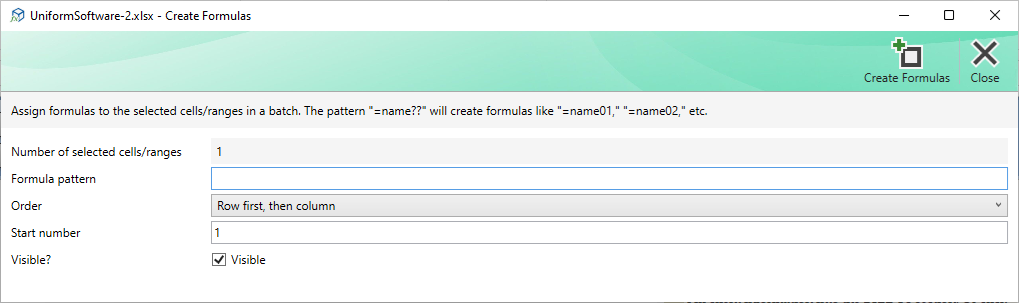
The Create Formulas window assigns Excel formulas to the selected cells in a batch, using the same sequence-number pattern mechanism as the New Names window. It is useful when you need to assign a series of named references to many cells at once.
Note: Before opening this window, select the cells you want to assign formulas to on the worksheet.
How It Works
You provide a formula pattern that may include ? characters as placeholders for a sequence number. The window assigns one formula per selected cell, incrementing the sequence number for each cell according to the order you choose.
Example: a pattern of =Region?? applied to three selected cells produces =Region01, =Region02, and =Region03 in those cells.
The leading = is optional: if you omit it the window adds it automatically. The formula pattern is validated before being applied — if the resolved formula is not syntactically valid an error message is shown.
Fields
| Number of selected cells/ranges | Read-only. The number of cells or merged-cell areas in the current selection. |
|---|---|
| Formula pattern | The formula to assign. Include ? characters for the sequence number if naming multiple cells. The pattern must resolve to a valid Excel formula. |
| Order | Row first, then column or Column first, then row. Controls the order in which sequence numbers are assigned to cells. |
| Start number | The first sequence number. Defaults to 1. |
| Visible | When unchecked, the formula in the cell is hidden (the cell will appear empty and the formula bar will be blank when the cell is selected on a protected sheet). |
Commands
| Create Formulas | Validates the pattern and applies the formulas to the selected cells. If successful the window closes. If an error occurs the window stays open with an error message. |
|---|---|
| Close | Closes the window without making any changes. Pressing Escape has the same effect. |
