The New Names window creates defined names for the selected cells or ranges in a single operation. It is designed for situations where you need to name many cells quickly using a consistent naming pattern.
Note: Before opening this window, select the cell or cells you want to name on the worksheet.
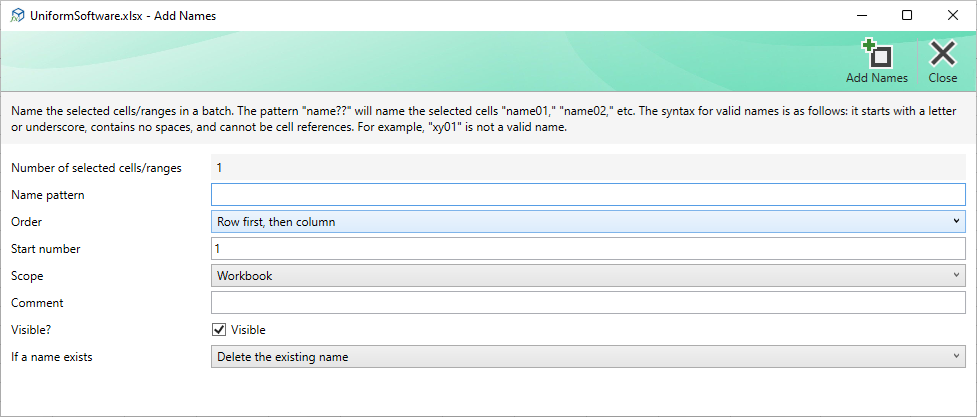
How It Works
The window reads the current selection when it opens and displays the number of cells or ranges selected. You provide a name pattern and the window generates one name per cell or range, incrementing a sequence number for each one.
The ? character in the pattern is a placeholder for sequence digits. One ? produces a plain number (1, 2, 3…); two ?? produce zero-padded two-digit numbers (01, 02, 03…); three ??? produce three-digit numbers (001, 002, 003…), and so on.
Example: a pattern of Region?? applied to four selected cells produces Region01, Region02, Region03, and Region04.
If only one cell is selected, the ? is not required and the name is used exactly as typed.
Fields
| Number of selected cells or ranges | Read-only. Shows how many individual cells or distinct merged-cell areas are in the current selection. This is the number of names that will be created. |
|---|---|
| Name pattern | The name or pattern to use. For a single cell, type the name directly (e.g. Revenue). For multiple cells, include one or more ? characters to insert the sequence number (e.g. Region?? or Item_???). The name must start with a letter or underscore, contain no spaces, and must not be a valid cell reference (e.g. A1 is not allowed). |
| Order | Controls the order in which cells are numbered when the selection spans multiple rows and columns. Row first, then column processes left-to-right across each row before moving to the next row. Column first, then row processes top-to-bottom down each column before moving to the next column. |
| Start number | The first sequence number to use. Defaults to 1. Change this if you want the names to start at a different number, for example 10 to produce Region10, Region11… |
| Scope | Whether the names should be visible across the entire workbook (Workbook) or only within the currently active worksheet. Worksheet-level names take precedence over workbook-level names of the same base name. |
| Comment | An optional comment to attach to each name. The same comment is applied to all names created in this batch. |
| Visible | When checked, the names are visible in Excel's built-in Name Manager. When unchecked, the names are hidden from the Name Manager but remain functional in formulas. |
| If the name already exists | Controls what happens when a generated name already exists in the workbook at the chosen scope. Delete the existing name overwrites it silently. Report an error stops the operation and shows an error message for that name. |
Commands
| Add Names | Validates all inputs and creates the names. If successful the window closes automatically. If an error occurs (for example an invalid name pattern or a naming conflict when set to Report an error), an error message is displayed and the window stays open. |
|---|---|
| Close | Closes the window without creating any names. Pressing Escape has the same effect. |
Important: If the name pattern does not include any ? characters and more than one cell is selected, the operation will fail with an error asking you to add ? characters to the pattern.
